Git Integration
Argo Watcher includes a built-in GitOps updater that commits image tag changes directly to your GitOps repository. This eliminates the need for Argo CD Image Updater and removes the additional deployment latency it can introduce when managing a large number of images.
Tip
If you are currently using Argo CD Image Updater and want to migrate, see the Migrating from Argo CD Image Updater section.
Prerequisites
This guide assumes you already have a working Argo Watcher installation. If not, complete the Installation guide first.
Before enabling the GitOps updater, you need to:
-
Create an authentication secret (choose one approach):
- Deploy token -- Generate an arbitrary string and add it to the Argo Watcher Kubernetes secret under the
ARGO_WATCHER_DEPLOY_TOKENkey. This approach is planned for deprecation in v1.0.0. - JWT secret (recommended) -- Generate a secret for signing JWT tokens (see Generating the JWT Secret) and add it to the Argo Watcher Kubernetes secret under the
JWT_SECRETkey.
- Deploy token -- Generate an arbitrary string and add it to the Argo Watcher Kubernetes secret under the
-
Create an SSH key secret -- Generate an SSH key pair and store the private key in a Kubernetes secret. By default, Argo Watcher expects the key under the
sshPrivateKeyfield, but this is configurable via the Helm chart. -
Update the Helm chart values -- Add the updater configuration:
JWT Configuration
JWT is the recommended authentication method for the GitOps updater. It provides fine-grained control over which applications a token can deploy to.
Generating the JWT Secret
The JWT_SECRET is a symmetric key used to sign and verify tokens (HMAC). It is not generated for you -- you create it once and store it in the Argo Watcher Kubernetes secret under the JWT_SECRET key. The same secret is later used to sign tokens (see Generating a JWT Token).
Generate a 256-bit random secret with openssl:
Warning
Treat this value as a credential. Anyone who knows it can mint valid deployment tokens. Store it only in the Kubernetes secret, never commit it to Git, and rotate it if it is ever exposed.
JWT Payload Structure
{
  "sub": "argo-watcher-client",
  "cluster": "prod",
  "allowed_apps": ["app1", "app2"],
  "iat": 1773352800,
  "exp": 1804888800
}
| Field | Validated | Description |
|---|---|---|
exp |
Yes | Expiration timestamp (Unix epoch). Required. Tokens without exp are rejected. |
iat |
Yes | Issued-at timestamp (Unix epoch). Tokens with a future iat are rejected. Use date +%s to generate. |
nbf |
Yes | Not-before timestamp (Unix epoch). Optional. Enforced by the underlying JWT library -- tokens used before this time are rejected. |
sub |
No | Token subject. Informational only (e.g., service name or team identifier). Not validated by the server. |
cluster |
No | Cluster identifier. Informational only. Not validated by the server. |
allowed_apps |
No | List of Argo CD application names this token can deploy to. Use "*" to allow all applications. |
Note
Application-level filtering based on allowed_apps is not yet implemented and is expected in a future release. The sub and cluster claims are reserved for future use.
Generating a JWT Token
You can use jwt-cli to generate tokens:
jwt encode \
  --secret="YOUR_JWT_SECRET" \
  '{"sub":"argo-watcher-client","cluster":"prod","allowed_apps":["app1"],"iat":1773352800,"exp":1804888800}'
Replace YOUR_JWT_SECRET with the value stored in the JWT_SECRET key of your Kubernetes secret. Update the iat and exp timestamps as appropriate.
Application Configuration
Argo Watcher uses Argo CD application annotations to determine how to manage image tag updates. All configuration is applied directly to the Argo CD Application resource.
Required Annotations
metadata:
  annotations:
    argo-watcher/managed: "true"
    argo-watcher/managed-images: "app=registry.example.com/group-name/project-name"
    argo-watcher/app.helm.image-tag: "app.image.tag"
How annotations work:
argo-watcher/managed-- Enables Argo Watcher management for this application.argo-watcher/managed-images-- Maps an alias (app) to a full image name. The alias is used to reference the image in other annotations.argo-watcher/ALIAS.helm.image-tag-- Specifies the Helm value path where the image tag should be written. ReplaceALIASwith the alias defined inmanaged-images.
Warning
When processing annotations, Argo Watcher associates an image with all aliases that share the same image name. You cannot use different release strategies for aliases that use the same image.
Multi-Source Applications
Argo CD supports applications with multiple sources. To use the GitOps updater with multi-source applications, add the following annotations:
metadata:
  annotations:
    argo-watcher/managed: "true"
    argo-watcher/managed-images: "app=registry.example.com/group-name/project-name"
    argo-watcher/app.helm.image-tag: "app.image.tag"
    argo-watcher/write-back-repo: "git@github.com:example/gitops.git"
    argo-watcher/write-back-branch: "main"
    argo-watcher/write-back-path: "sandbox/charts/demo"
Warning
write-back-repo, write-back-branch, and write-back-path are honored only for applications using spec.sources (plural, multi-source). For a single-spec.source application these three annotations are silently ignored — Argo Watcher derives the repo, branch, and path from the application's existing source instead; only write-back-filename is still read.
For an application named Demo, Argo Watcher creates or updates the override file at:
Note
The override file path is derived from the application name. This is the currently supported approach for reliably identifying the correct file to update.
Fire-and-Forget Mode
In some cases, you may want to update the image tag without waiting for the deployment to complete. This is useful for applications that only contain CronJob resources, where the updated image won't be running immediately.
Add the following annotation to enable this mode:
When this annotation is set, Argo Watcher commits the image tag change and immediately marks the deployment as deployed without monitoring the application status.
Custom Commit Messages
The default commit message format is:
You can customize the commit message using a Go template in the COMMIT_MESSAGE_FORMAT environment variable:
extraEnvs:
  - name: COMMIT_MESSAGE_FORMAT
    value: >-
      argo-watcher({{.App}}): update image tag
      ID: {{.Id}}
      Author: {{.Author}}
      Images:
      {{range .Images}}{{.Image}}:{{.Tag}}
      {{end}}
For available template variables, see the Notifications page.
CI/CD Configuration
After configuring the server and application annotations, update your CI/CD pipeline to provide the authentication token.
Using a deploy token (planned for deprecation):
Using JWT (recommended):
# Set the raw token — no "Bearer " prefix — so it can be masked as a CI variable.
export BEARER_TOKEN="your_jwt_token"
See the Installation guide for complete CI/CD pipeline examples.
Warning
Argo Watcher uses the provided image tag value as-is, without validation. Ensure the tag is valid and corresponds to an image that exists in the registry.
Deployment Locking
Argo Watcher supports a deployment lock mechanism to prevent changes during maintenance windows or other critical periods. When a lock is active, all new deployment tasks are rejected.
Scheduled Lockdown
Define recurring maintenance windows using a schedule:
Or use the Helm chart values:
In this example, deployments are blocked between Wednesday 20:00 and Thursday 08:00, and between Friday 20:00 and Monday 08:00.
The Web UI lockdown banner updates automatically (within about a minute) when a scheduled window begins or ends — no page refresh is needed.
Manual Lockdown
Note
Manual locking requires Keycloak (KEYCLOAK_ENABLED=true). Without an auth backend the server does not register the POST/DELETE /api/v1/deploy-lock endpoints (requests return 404 Not Found) and the Web UI does not show the lock toggle. The read-only lock status and scheduled lockdown (above) work regardless of Keycloak.
Via API
Set a lock:
Release a lock:
Note
When Keycloak integration is enabled, a valid Keycloak token (i.e., any authenticated user) is required to use the deploy lock API endpoints.
Via Web UI
Click the Argo Watcher logo in the Web UI and toggle the Lockdown Mode switch.
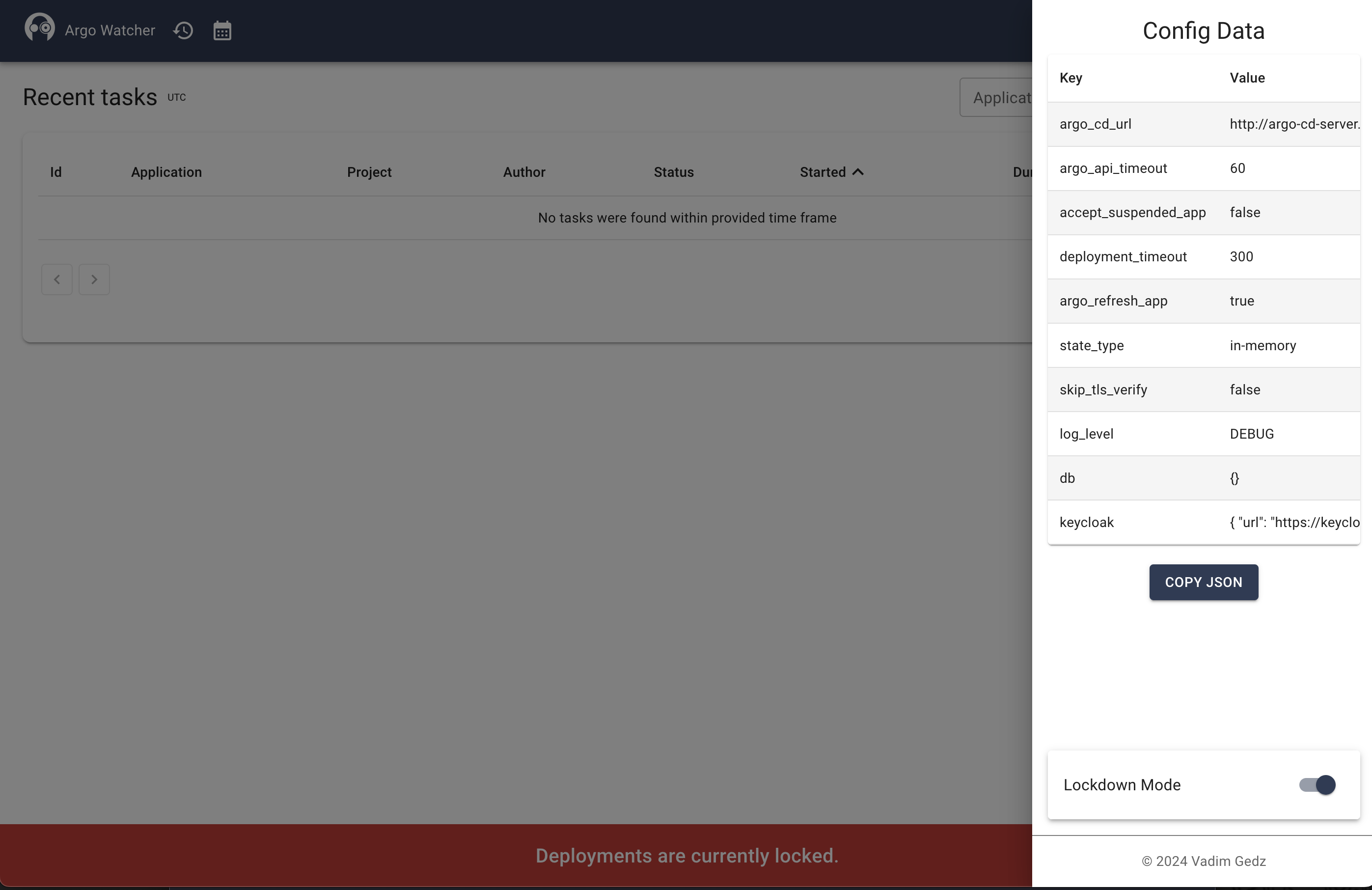
Note
When Keycloak integration is enabled, you must be authenticated to manage the deployment lock.
Migrating from Argo CD Image Updater
If you are currently using Argo CD Image Updater, follow these steps to migrate an application to Argo Watcher:
1. Replace the Image Updater annotations:
Remove the existing Argo CD Image Updater annotations:
# Remove these annotations
argocd-image-updater.argoproj.io/image-list: app=registry.example.com/group-name/project-name
argocd-image-updater.argoproj.io/app.update-strategy: latest
argocd-image-updater.argoproj.io/app.helm.image-name: app.image.repository
argocd-image-updater.argoproj.io/app.helm.image-tag: app.image.tag
argocd-image-updater.argoproj.io/app.allow-tags: regexp:^\d{7}-stage
2. Add the Argo Watcher annotations:
# Add these annotations
argo-watcher/managed: "true"
argo-watcher/managed-images: "app=registry.example.com/group-name/project-name"
argo-watcher/app.helm.image-tag: "app.image.tag"
3. Update your CI/CD pipeline to include the Argo Watcher client step and authentication token (see CI/CD Configuration).
4. Test the migration on a non-production application first, then roll out to the rest of your applications.